Sunday, November 4, 2012

Hot online deals for Diwali 2012

Diwali is considered a very auspicious time for making big consumer electronic purchases, irrespective of whether you are a tech enthusiast or not. And what makes it all the more beneficial are the festive discounts and offers that different brands come up with
Hot online deals for Diwali 2012


With Diwali just around the corner, it’s time for indulgence and shopping, be it shopping for oneself, for family, for house or even friends. Diwali is also considered a very auspicious time for making big consumer electronic purchases, irrespective of whether you are a tech enthusiast or not. And what makes it all the more beneficial are the festive discounts and offers that different brands come up with. This ensures that you usually end up with a good bargain as the market is inundated with loads of attractive deals. And thanks to the boom of online shopping portals, your options have increased manifold. We’ve listed out some such lucrative deals for our readers.

Flipkart
Apart from the deals, Flipkart has waived off the processing fees for EMI
Apart from good deals, Flipkart has also waived off the processing fees on EMIs


Undoubtedly one of the most popular online shopping sites, Flipkart has geared up for Diwali. The details for the festive offers can be accessed from the banner on the homepage. It has been divided into Gadget Store, Accessory Deals, TV/Audio/Gaming, Lifestyle and other sections. Under the Gadgets Store, you will find discount and offers on mobile phones, tablet, cameras and laptops. On most of the products, apart from the discount and the freebies from the brand, Flipkart is providing a Flipkart e-gift voucher up to Rs.1,500. The Flipkart e-gift voucher offer is available on select mobile phones, tablets and cameras. Apart from this, Filpkart has waived off the processing fee on the three and six month EMIs for the festive season, i.e. till November 15. 

HomeShop18
Purchase for more than 750 and you can be a part of the bumper lucky draw
Purchase goods worth more than Rs. 750 and you can be a part of the bumper lucky draw


For the festive season, HomeShop18 has lined up several deals for consumers. As a part of the festive bonanza, it is offering up to 70 percent off on mobiles and laptops. Also, if you shop for any product over Rs. 750, then you stand a chance to win daily prizes and even a bumper prize. It also has special offer on Samsung products. On purchase of any Samsung mobiles phone, camera or laptop –  you stand a chance to win a bike over and above the discount. Moreover, you are also eligible for the daily prizes and the bumper prize. Also, don’t forget to check the handpicked limited offer deals on a wide range of products.

Indiaplaza
Indiaplaza has a number of deals to choose from


Indiaplaza brightens up the festivities of Diwali with an array of offers for tech enthusiasts and others alike. The shopping site has some cool deals on mobile phones, cameras and other electronics and home appliances. Up for grabs are six phones with up to 41 percent off, portable storage devices with up to 72 percent off, among others.Though not as lucrative as other sites, Indiaplaza also offers small discounts on Samsung, Nikon and Olympus cameras. If you plan to buy a TV set this Diwali, then Indiaplaza has some dhamaka offers from Panasonic, LG, Samsung and Philips. The TVs range from 32-inch to 50-inch, with a discount of up to 28 percent. Overall, the site is a one-stop shop for your Diwali shopping with great discounts on almost all Diwali related goods from sweets to crackers.

Tradus
If you are planning to buy TV then do check out the deals on Tradus
If you are planning to buy a TV, then do check out the deals on Tradus
Tradus celebrates the Diwali season with a plethora of offers on various tech gadgets. It is giving away up to 18 percent off on LCD TVs from renowned brands like Samsung, Sony and LG. If you plan to pick a tablet, camera or camera accessories, then you won't be disappointed, as there are too many options available on the site along with a Diwali discount of up to 45 percent. You will also find computer peripherals, portable storage devices and some nifty mobile cases at discounted prices. Tradus is also offering cashback Diwali bonanza offer, which means you can get back Rs. 2,000 on purchase of goods worth Rs. 5,000, Rs. 1,000 on purchase of Rs. 3,000 and Rs. 500 on purchase of Rs. 2,000. 

Indiatimes
Indiatimes is offering additional discount of up to 5000
Indiatimes is offering additional discount of up to Rs. 5,000


Indiatimes Shopping has Diwali Dhamaka offer on phones, laptops, cameras, camera accessories, camcorders and TVs. Under computers, one will find tablets, portable hard drives, printers and other computer accessories. Compact cameras are on sale with up to 21 percent off. Along with the discounts, Indiatimes is also offering up to Rs. 3,000 off on purchases under the phones and computer section, and Rs. 4,000 and Rs. 5,000 on cameras and TVs respectively. This Diwali offer is valid up to November 13 and one will have to use the ‘DiwaliOffer’ coupon for additional discount. However, the website states that it’s a promotional offer valid for a limited period of time on first-come, first-served basis.

SnapDeal
SnapDeal has some good offers on mobile phones


The popular daily deal site Snapdeal also has come up with some Diwali offers. You have plenty of deals to choose from. It has a section for mobile phones, where you will find phones from leading brands being offered at discounted rates. Additionally, Snapdeal also has the Apple iPhone 5 for sale, with the 16GB model available for Rs. 45,500 and 32GB model for Rs. 52,500. It also has one offer where you can buy one phone and get another for free. The brands here include Micromax, AirTyme, Vox, Akai and Maxx, amongst others. It also has offers on select laptop brands that include Lenovo, Asus, HP and Toshiba. In the cameras section, it has some good deals on Canon, Nikon and Sony. And if you were to buy a camera from Genius, then you will get free mobile phones from Kopper.

Zoomin

Zoomin has good limited period offer on select range of products


Even though Zoomin is primarily a photo store that specialises in photo prints, photo books and gifts, the site also sells gadgets. For the festive season, it has some great offers lined up for phones and cameras. Though limited in number, the deals are worth considering and most importantly, these offers are valid only till November 6. For instance, the Samsung Galaxy S3 that is available on Flipkart for about Rs. 34,900, is available here for Rs. 32,999. It has select handsets from Samsung, Sony and Nokia, and cameras from Panasonic, Nikon, Fujifilm and Olympus. While Zoomin offers free shipping, it will take about 7-14 days to deliver.   

Infibeam
You will get good bargain for Sony Experia range here
You will get a good bargain for Sony Xperia range here


On this Diwali, the online shopping site Infibeam is offering super discounts on Sony mobile phones. It has put on sale mid to high-end Xperia line-up of Sony handsets including the latest Xperia tipo. Then there are Xperia U, P, S, tipo dual, neo, Sola and more. Infibeam also has a page showing some cool Samsung cameras at discounted prices that you could grab for this Diwali season. On purchasing a camera, you can also avail of a holiday voucher worth Rs. 7,000. Besides festive offers, you can also check out Infibeam’s phone section, which offers some really good discounts on mobile phones.

TheITDepot

ITDepot too is offering festive discounts on limited range of products


TheITDepot, a handy shopping website for hardcore techies, also has some devices on sale this Diwali. It has on sale chassis from NZXT, Corsair and Cooler Master, Asus graphic card, flash drives and webcam. Besides this, TheIT Depot has a range of computer peripherals that you can choose from. It also has a ‘deal of the day’ offer that puts on sale a select device with an attractive discount each day. You will also find products from AMD, Belkin and Antec. You can either call up and order via phone or buy online with its wide range of payment options.

Thursday, November 1, 2012

Can't Stand The Slowness? The Top 10 Reasons for Poor PC Performance


pc performance
Has your computer loaded this webpage yet? If it has, you'll be halfway toward working out just why it seems to be running so slowly. There are many reasons for desktop and laptops to chug along at their own, slow pace, defying the system specs and performing more like a relic from the 1990s.
Where you're browsing the web, word processing or gaming, poor performance will cause problems. The irony is that in most cases, these problems are avoidable, or in the worst case scenario, easily resolved. From relying on old hardware to poor application management, bad airflow and the need to defragment your hard disk drive, the following list will tell you everything you need to know about finding the reason for your computer's poor performance. You'll be able to deal with these problems quickly and in most cases with zero outlay.

1. System Startup

Booting Windows typically takes around the same length of time on any computer - it's when it comes to loading the drivers and startup files that things slow down. As you add software to your PC, any that is required to launch as part of the Windows startup will result in sluggish performance, and perhaps even freeze your computer.
To fix this you will need to reduce the number of applications that are loading at this time. Various utilities can be employed to deal with a slow Windows startup, from MSConfig to the very useful Autoruns.

2. Fragmented Hard Drive

pc performance
One of the most common causes of a slow computer is a fragmented hard disk drive, although the actual effect of this has been called in to question in these days of faster, larger drives and massive games and media files. Nevertheless, checking the disk for fragmented data won't take too long and can help with dealing with slow performance issues. In Windows, open Start > Computer and right-click the C: drive, selecting Properties > Tools > Defragment Now and following the instructions displayed.
Note that while you can't defrag an SSD, you can optimize it for peak PC performance.

3. Too Many Permanent Temporary Files!

Temporary folders are supposed to make using Windows and your browser faster by providing easily-accessed files that can be loaded up extremely quickly. This might be data that is downloaded from the web or regularly required by other applications.
When your hard disk drive becomes over 90% full you will find that performance dips markedly. In order to combat this, one of the best things you can do is delete your Windows temp files and clean your web browser. While deleting your Internet history and temporary Internet files is something you can do from your browser, CCleaner is a good option for tidying up the Windows temp folders.

4. An Incorrectly Configured Pagefile

Error messages and slow performance can be due to a problem with the Windows Pagefile, a temporary portion of your system memory that is used for processing functions, part of which involves the temporary holding of data.
improve pc performance
Increasing the Pagefile is easy. First, open Start and right-click Computer, selecting Properties; from here, openAdvanced > Settings > Performance > Advanced. Under Virtual Memory, select Change, and alter the size of the Pagefile so that a larger portion of RAM is available.
Note that if no more RAM can be allocated you will need to install additional memory modules.

5. Uninstalled Applications & The Windows Registry

When you uninstall software on Windows, the uninstaller doesn't necessarily remove everything from your computer. While you can employ the Piriform CCleaner utility to remove software completely, historical uninstalls and other problems will have caused issues with your Windows Registry.
The Windows Registry is like a vast database of filepaths and instructions for the operating system and installed software, and it can become corrupted and overloaded. These issues will cause slow boots, poor performance and a very slow shut down, as well as an inability to resume from sleep/standby modes.
Once again, CCleaner can be employed here, but there are many other tools that can be used to fix problems in the Windows Registry. Remember to back up the registry before running tools that might cause problems, even if your PC is running slow.

6. Slow Network?

While network speed might not have a direct impact on your computer's performance in many cases, if you're relying on downloading data or perhaps using a cloud application or even a remote virtual platform, slow network speed will come into play.
improve pc performance
To overcome these issues, first check that your network cabling is secure and undamaged. If you have a wireless router, make sure that you are getting the very best connection, and spend some time checking the configuration on your router. You can use the Windows command prompt to check the speed of your Internet connection using the tracert command, while various websites provide live speed tests.
Don't overlook your local network as the cause of your problems, however. Network management software can be used to find out if anyone is piggy-backing your connection, and allow you to remove them.

7. Viruses & Spyware

If you're using security software, it *should* be protecting you from malware and viruses on your system. Malicious software is one of the primary reasons for slow or poor system performance, and can add themselves to your computer while you install software downloaded from the web. Malware doesn't just come in the form of viruses, worms and Trojans, however - there are plenty of toolbar hijacks and Facebook apps that can be described as malware or be the cause of malware ending up on your computer.
You can deal with malicious software by ensuring that your computer is fully equipped with anti-virus and anti-malware tools that run regularly. Removal of malware and viruses could prove difficult, however, if you don't have these tools installed.

8. Security Software Letting You Down?

Try to stick to anti-malware/anti-spyware applications with good reputations, however, as opposed to any that might have come bundled with your computer. There are plenty of free tools that you can use, but any of them can be responsible for drawing on too many system resources.
improve pc performance
You can check whether security software (or other applications) are draining too many system resources by opening Task Manager, either by right-clicking the Windows taskbar or pressing CTRL+ALT+DELETE. Using the Processes and Performance tabs you should be able to identify which applications are causing the largest drain on resources - if it is your security software, you will need to deal with this in the application settings or even remove it completely. As there are many good free anti-virus and anti-malware applications available online, this shouldn't be difficult to replace.
(Note also that running two anti-virus applications will be counterproductive, as each is likely to identify the other as a threat, resulting in more slow PC performance.)

9. Old Hardware

Possibly the hidden villain of slow PC issues, old hardware can prove deadly to your computer. It's a familiar tale - the computer bought five or so years ago slowly upgraded component-by-component until it eventually has all brand new shining parts that simply cannot hope to perform as intended.
This is usually because of a single element, such as RAM that hasn't been upgraded or replaced, or perhaps a system that has been completely overhauled except for a motherboard with slow bus speed.
Elsewhere, old cables can result in slow transfers and data loss, impacting performances speeds and making an apparently decent computer look over the hill.

10. Positioning, Airflow and Ventilation

There are many factors that can determine the lifespan of your computer, but one of those that you should pay attention to is dust.
pc performance
This single substance can wreak havoc in a computer, which is why machines should be regularly serviced to remove build-up of dust in vents, on cables, fans and heatsinks. The internal airflow of your computer should be such that the processor, graphics card and motherboard are kept cool - if this is not possible, performance issues will occur.
A computer should be positioned in a ventilated area, one which is relatively cool and largely dust free. You should also avoid covering the vents on your computer.

Speed Up Your PC With Regular Maintenance!

Using one, some or all of these solutions in tandem will enable you to speed up your computer, in some cases with remarkable results.
Note, however, that there is no substitute for regular maintenance. Whether that means keeping your hardware clean and dust free or running frequent checks with CCleaner and other utilities mentioned here, you should probably set aside one day a month to make sure your hardware is running at optimum speed for the rest of the time.
After all, computers are expensive pieces of equipment - looking after your investment will give you the best results

Saturday, October 27, 2012

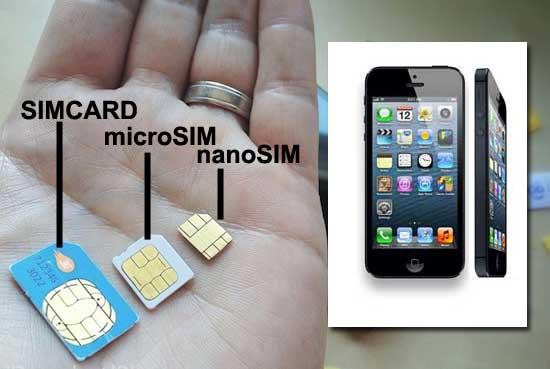
HowTo Cut, Make Nano SIM for iPhone 5

The smaller SIM standard goes even more smaller as Apple trims the iPhone’s thickness by 18%.
Your existing normal SIM or Micro SIM can be converted to Nano SIM by following simple steps. To do this, you have two options: DIY or visit your wireless network’s local customer service center and get them to replace your current SIM with a Nano SIM. But we know if you came to this DIY guide, your intent is to Do It Yourself, lets get started
What you need:
  • A printer (Colored or monochrome)
  • A4-sized sheet
  • Tape
  • Ruler and marker
  • Good Scissors
  • Sandpaper or file
  • Patience & accuracy
Warning: This needs high ability of accuracy in one’s hands. Not everyone is blessed with that. We will not be held responsible if you damage your SIM card.

How to Make Nano SIM card for iPhone 5

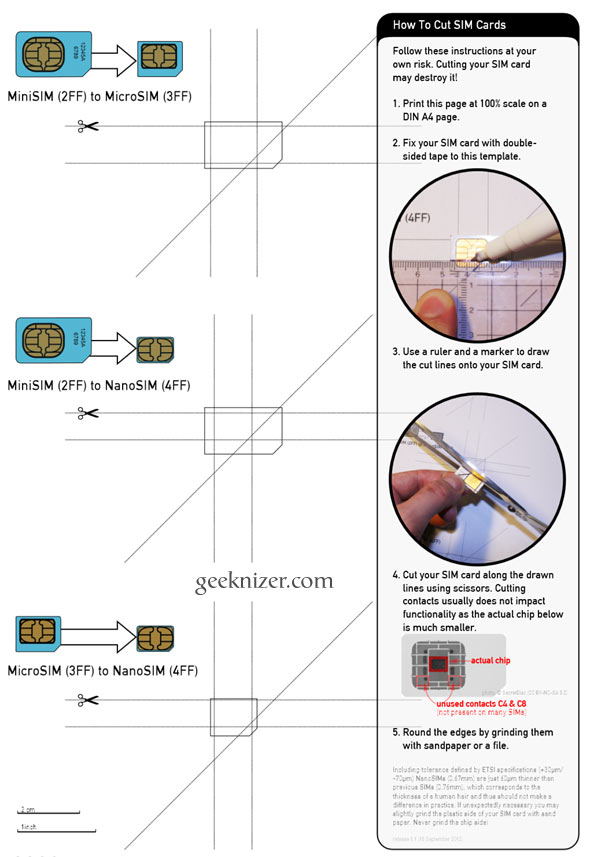
Step 1: Download & print PDF at 100% scale on an A4 page.
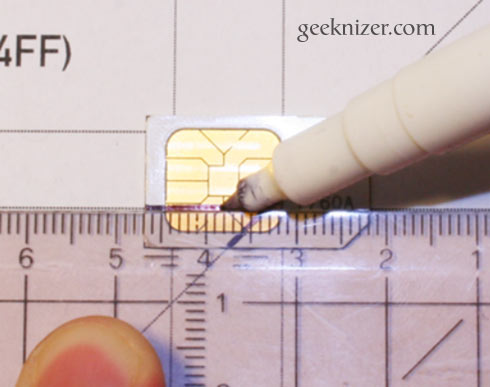
Step 2: Accurately place your current SIM card on the designated area. If you have a Mini SIM, place it on the second highlighted area. If you have Micro SIM, place it on the third and last. When you’re sure it matches the outlines, stick the SIM to paper using  a tape.
Step 3: Using a ruler and a marke, carefully mark the five lines along which you would cut in the following step.
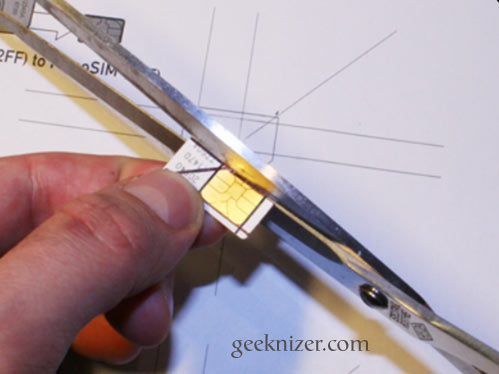
Step 4: Use the scissor to carefully cut across the marked lines. You really need to be slow and 
    accurate. Single mistake can damage your SIM card. Ask your mom if you’ve to, she might be able to do it better.
Step 5: Using a file or sand paper, Smooth out the edges of your Nano SIM.
Bingo, you have successfully made Nano SIM for your iPhone 5.
Apple has really left no plastic area on the SIM card. Its hard to say what they would have in the iPhone 6. Perhaps a pico-SIM or femto-SIM card.

Tuesday, October 16, 2012

Not Just Email: Your Voice Mail Can Be Hacked, Too - Here's How To Secure It


secure voice mail
Much has been made throughout 2011 and 2012 of the dangers of phone hacking. While many of the victims of the practice - in this case sponsored by major news organizations - were celebrities, politicians and sportsmen, many more were real, regular people who may or may not have been involved with slightly more famous people, one way or another.
In the UK, USA and Australia, investigations are ongoing into these practices, but let's step back a moment. You might have read with interest (perhaps even glee) about these cases, but what if it happened to you? Would you like to be a phone hacking victim?
The vast majority of those hacked had no idea how reporters knew so much about them. There is a simple reason for this - they didn't know that their cell phone voicemail was not secured. Upon spending several hundred dollars on phones, they had like many other people assumed that the device was secure.
Voicemail security is not something that appears to be a priority for mobile phone networks, which is why it is something that users should be proactive about. Anyone's phone can be hacked - if it was easy for journalists, it would be easy for anyone to do...

Keep Your Phone Locked & Voicemail Secure

Forget about the "I've got nothing to hide" mantra - you do. Social security numbers, bank account numbers, credit cards, insurance, mortgages... and that's just a small aspect of the financial side of your life. We all have something to hide, and with good reason. As we've seen in the newspapers and TV news reports, there is no doubt that this information can be filtered out of mobile phone voicemail messages, which is why you should keep your voicemail secure.
secure voice mail
Phone hackers were able to get into voicemail records by dialing a generic number from a mobile and then keying in a PIN. But even this practice can be simplified if you leave your mobile lying around. Hackers (hired by reporters in the famous cases that saw British newspaper News of the World closed down following public outrage or even journalists themselves) have no scruples when it comes to doing their job.
In order to prevent interference and hacking, remember to set an unlock password on your phone. Once you've done this, set a voicemail password. In most cases you should be able to do this manually, but if not contact your mobile network.
  • On an iPhone, open Settings > Phone > Change Voicemail Password and make the change.
  • In Android, use Apps > Settings > Call > Voicemail settings to change your voicemail password.
  • Windows Phone users can open Settings > swipe left to Phone and tap Voicemail number to edit.
  • On BlackBerry, use Options > Voicemail settings to configure a new password.
When you set a new password for voicemail, make sure that it is secure. You shouldn't need to memorize it as your phone will store the information, but you will need to ensure that your phone's lock code is secure.

The Usual Principles of Security

secure voice mail
The following passwords are extremely popular on mobile phones:
  • 1234
  • 0000
  • 2580 (the middle column of numbers on a telephone keypad)
  • 1111
  • 5555
  • 5683 (Spells "LOVE")
  • 0852 (the middle column of numbers on a telephone keypad in reverse)
  • 2222
  • 1212
  • 1998
As such, these should be avoided! Also you should think beyond birth years for yourself or those close to you. It's a good tactic to set a password and ask a close friend if they can guess it. If they do, think again!
The usual principles of setting a PIN should apply. Not only should it be hard to guess and apparently random, it should be unique to your phone. The tactics used by reports and private investigators in the phone hacking scandal were occasionally those used by phishing scammers - calling up people to gain personal information from which a password or PIN might be guessed.
In light of this, maintaining completely different passwords for all of your various telephone and online accounts is vital, if slightly tricky to achieve. Additionally, you should change passwords regularly.
Remember too that voicemail hacking can be done from your own phone if the device is left unsecured and there is no unlock PIN setup. Should someone walk off with your phone there are various tools that you can use to remotely locate, reset and wipe the device. Of course, by then, it might be too late...

Have No Doubts!

It is simple to change your voicemail PIN, but it is easily overlooked. The famous names whose personal lives have been exposed (over the past 20 years or so) prove that people trust devices in their possession far more than they should.
secure voice mail
Whether you're an average Joe with a few dollars in the bank or the sister of a football player, you need to make sure that your phone voicemail is secure. Messages from banks, lovers, car dealers, retailers and hospitals can be used to the benefit of all manner of criminals, from unscrupulous journalists to the online mafia.
Change your voicemail PIN, make it tough to break, and regularly alter it. If there is any doubt about the strength and quality of your voicemail PIN and mobile phone lock code, you can be sure that someone else will be able to break it.

What Is Wireless Charging & How Exactly Does It Work?


wireless charging
We live in a wireless world. Except we don't. Sure, we can send huge amounts of information across the airwaves, but the devices capable of sending and receiving it are tied down to power cords. Batteries allow some freedom but, eventually, we all have to come back around to the familiar face of the power outlet.
What if we didn't? What if we could charge anywhere, at any time? This is the promise of wireless charging, a concept that seems ripped from sci-fi. But it's not - it's real, and it's available today. Let's look at the reality and see what this technology can and can't accomplish.

How Wireless Charging Works

wireless charging
The term "wireless charging" usually refers to inductive charging. This technology uses a charging station that creates an alternating magnetic field. A device with the proper induction coil will receive energy from that field when it is placed nearby, making it receive power without a physical connection.
Cordless toothbrushes and other bathroom devices have used inductive charging for a long time. The technology has traditionally had problems with low efficiency and slow charging, but these were not considered a disadvantage for bathroom appliances that might be used for only a few minutes every day. Using inductive charging is safer, as well, because the conducting material is not exposed. Touch it with a wet hand? No problem.
Inductive charging is not magic. It needs specific hardware to function, and that hardware must be built into a device. Most devices do not have inductive charging coils built in to them, so a sleeve or adapter must be attached to enable inductive charging.

The Disadvantages Of Inductive Charging

wireless charging pads
Inductive charging relies on magnetic fields. These can be strong but often have a short range of effect unless an incredible source of magnetism is available (the Earth has a magnetic field only because it also has a huge molten metal core). Small inductive charging stations are no different.
Let's use a wireless toothbrush as an example. You place it on the stand and it charges. The contact between your toothbrush and the stand is not responsible for charging, however. It just seems that way because the field used to charge the toothbrush is so weak that its range is best measured in millimeters.
Charge speed and efficiency remain problems, as well. Attempting to charge a device using induction charging just isn't as efficient as a direct, physical connection.
And then there's the inductive coil. Though small and becoming smaller, it's still a sizable piece of kit relative to the space available in a modern smartphone, tablet or ultrabook. This is a problem that will diminish with time but is relevant to today's devices.

Wireless Charging Comes To The Mass Market

wireless charging pads
The lack of a common standard is another reason why wireless charging never gained much traction in consumer electronics. It wasn't so long ago that most devices still relied on Ethernet cords for data and mobile broadband was restricted to ridiculously slow speeds. Wireless charging did not seem important before wireless communications.
That has changed thanks to the Wireless Power Consortium and its Qi (pronounced "chee") standard. The WPC is an industry organization sponsored by various companies all seeking a standard for wireless charging. Its members include every big name in the mobile market besides Apple.
I talked about Qi Wireless after attending CES 2012. I was able to see a number of working prototypes as well as existing products that used wireless charging. These prototypes and niche solutions are now becoming a reality is mass market products. Nokia, for example, recently announced is new Lumia 920 will have wireless charging built in. The less expensive Lumia 820 will have an optional shell that enables the technology.
It's clear that there is a future for wireless charging. There's a lot of industry support behind WPC and a desire to bring the feature to market. We'll likely see a number of additional devices with wireless charging announced this year and next.

The Future Of Wireless Charging

wireless charging
Current inductive charging can be convenient, but the lack of range is a problem. It diminishes the technology to a convenience rather than a revolution.
Will this change? Maybe. There's been plenty of research into the potential of long range wireless power and many different technologies have been used to achieve it. Lasers, microwaves and more powerful variants of inductive charging have been able to achieve longer transmission distances. Disadvantages have hampered wide-spread adoption. Tripping over a laser used for wireless power transfer, for example, could result in a vaporized foot.
It's hard to say where a breakthrough in this field will come from. Apple is one candidate because the company has patented a device that can allegedly power devices at ranges up to one meter. The Wireless Power Consortium is also continually looking into better options. And then there's Intel, who recently announced that it is working with Integrated Device Technology on a magnetic device that would be placed in a laptop and deliver power to nearby smartphones and peripherals.
Or a breakthrough could come from a small engineering company that's barely known. This is a tough technical problem that will require both creative thinking and significant engineering know-how to solve. A major corporation may not be the first to find a solution.

Conclusion

Wireless charging has huge potential. This is why people have been working on it for well over a century. If we could move power without wires we'd be able to re-think not just consumer electronics but the infrastructure used by the entire human race.
Alas, we're not there yet, but the renewed interest in this field brought by consumer electronics is appreciated. Perhaps the eternal quest of endless convenience can finally crack this technology wide open.

How To Remove Spam Apps & Ensure App Privacy


remove spam apps facebook
Apps on Facebook can be great, but they can also be a right pain in the neck. On one hand, there's useful apps like Spotify or Last.fm which make it easy to share your music taste with your friends. Mostly these are welcomed and vaguely interesting for the friends to view. On the other hand, there's annoying games and spammy viral apps that post things on your timeline.
There are several ways to clean up the apps you're using and ensure your privacy settings for apps are set just right. There are also some easy ways to remove and report applications when required - like when you've accidentally clicked on a viral scam app. Here's what you need to know.

Setting Privacy For Applications

When your absent-minded friend installs yet another dodgy application, how much information do you want the developers to find out about you? And what about this way around - if you're using a new game, how much information do you want the developers to know about your family? Your grandmother? Your kids?
This is the reason people need to check privacy settings for applications. Until you lock down your privacy, you never really know what information is being collected about you and your friends via apps you or your friends may have installed. Scary, isn't it?
remove spam apps facebook
Go to the drop-down menu in the top right of Facebook and choose "Privacy Settings", then choose to edit the settings for "Ads, Apps and Websites". From here you can choose exactly what information can be seen by applications your friends install. Since you don't know anything about the developers of most apps or what your friends might install, un-checking most of these boxes is a great idea. Then, if you care about your family and friends, teach them how to do this too.
remove spam applications facebook

Clean Up Your Apps

There are two main ways to get a list of all your apps. Firstly, you could go to the arrow at the top-right of Facebook and choose "Account settings" and then choose "Applications". Secondly, you could navigate from the Facebook Home page to the "App Center" using the links on the left hand side, then choosing "My Apps" from the menu on the left.
remove spam applications facebook
Either of these options will give you a list of all the applications you have authorised for your account. Although, the second method has the option of sorting by "Last used", which is handy when searching for something you recently added or got annoyed by. To remove the applications, just click on the cross to the right of each application. Remove anything that looks suspicious, unfamiliar or unused and you could clean up your apps in no time. And don't worry, if you remove something useful it can always be added again later. It's no big deal.

How To Get A Spam App Off Your Timeline Wall

It happens all the time. People see an update in their feed from a friend claiming to let them view a certain video or see who looks at your Facebook profile. They click on it impulsively because they're curious and instantly they have posted that same update on to all their friends. The viral app continues to annoy and intrigue their friends and the cycle continues. So, how do you get rid of it?
remove spam facebook
Every update on your timeline can be removed and the application may be reported as spam. Simply head to your timeline and click on the edit pencil in the top-right of the update. The menu for an update will show a "Remove" option and a "Report Spam" option, while a clustered bundle of information from an application will show options to "Remove Application" or "Mark As Spam". If you accidentally remove the post first, you can use the methods above for cleaning up your apps to remove the app, which should show as recently used.

Never Get An App Request From THAT Person/App Again

If you hate getting reminders and requests from apps, there's an easy way to block them. Head to the Facebook Home page and choose "App Center" from the menu on the left, then "Requests ". You'll see a list of all your recent requests from apps. From here it's simple - just click on the cross to the right of a request and it will give you the option to block the application completely.
Or if you're always getting requests from the same person, you can block that person's requests completely instead.
remove spam facebook


How To Hide Your Personal Information On Facebook

In the age of the Internet, privacy is a luxury and you have to constantly be on your heels to maintain it. Facebook makes it particularly hard for users to guard their personal data. Despite many changes, Facebook privacy settings remain complicated. Moreover, past updates have unexpectedly made previously private information available to the public.
Well, no stranger needs to know your email address, phone number, or see your family pictures. In this article I show how you can check what the public can see of you on Facebook. I also explain how you can control which of your information is visible.

What Information Can The Public See?

Do you think your profile is all locked up and the public cannot see anything they shouldn't? Well, how about we check it out, just to be sure!
Go to your Facebook Timeline, i.e. the page that is shown when you click your own name on Facebook. While you are logged in, you will of course see everything. In the top right of your profile summary that heads the Timeline, you should see a Settings icon next to the Activity Log button. Click Settings and select View As...
hide facebook info
This reveals what your Facebook Timeline looks like to a complete stranger. You can also test the view for specific people, by entering their names in the respective field in the top left.
hide facebook information public
The Timeline is one thing, but what you should really check is your About page. So while viewing your Timeline from the public's perspective, click About in the bottom left of the header. This is where Facebook potentially reveals your contact information, your employer, your education, where you live etc.
Something else you should check is what other parts of your Facebook profile are available to strangers by clicking the About button in the top left. This could include your friends list, your photos, your likes, subscriptions, events you are attending, your notes, and music.
So did you spot anything you didn't want the public to see?

How Can I Remove Items From Public View?

For most content, Facebook makes privacy control fairly easy.
Let's start with your About page. Return to this page in your normal logged in view. Notice there is an Edit button in the top right of every box. An exception is your history because it only aggregates available information. Click Edit for an item you want to change, then click the little symbols next to each entry to control who can see this information. You can choose from a few default options, including Friends or Only Me . You can also make the information available to custom lists of friends. Don't forget to hit Save every time you change a setting.
hide facebook information public
Curious about how to create custom lists of friends? Find out how you can use Facebook Friends Lists For Interests Or Circles.
Next, we will look at Photos. You can control the privacy for each photo individually. This is good to know because you cannot control the privacy level for the Profile Pictures album. To change its visibility, open a photo and click the Edit button on the right. Now you can change the description, location, date, and select who can see the photo. Click the Done Editing button to save your changes.
hide facebook information public
Fortunately, you can easily change the visibility of your custom photo albums. You will find the menu icon to change who can see an album, next to the number of photos in the respective album.
If you do not want others to see photos you were tagged in, review the 3 Things You Need To Know About Photo Tagging In Facebook to find out how to control tags.
Finally, to control what else people can see of you, including photos you were tagged in, let's look at your overall Privacy Settings. In the top right of your profile, click the little arrow and select Privacy Settings. This page allows you to customize privacy settings ranging from who can find and contact you on Facebook (How You Connect) and who can see posts you have been tagged in to social ads.
hide facebook info